
How to setup IMAP on iPhone
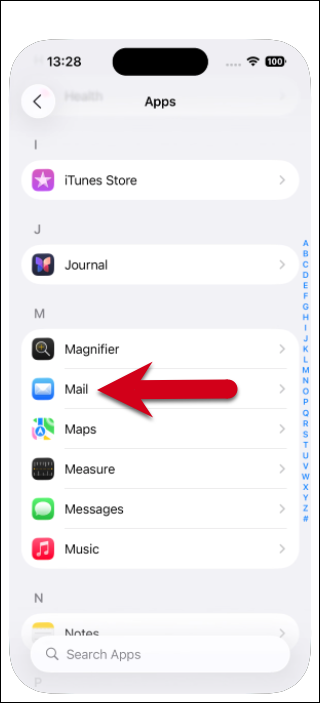
Step 1. Open Settings > App on your iPhone and tap Mail
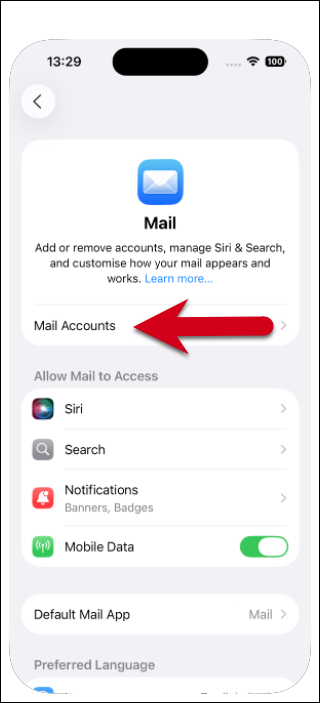
Step 2: Tap Mail Accounts
Step 2: Tap Mail Accounts
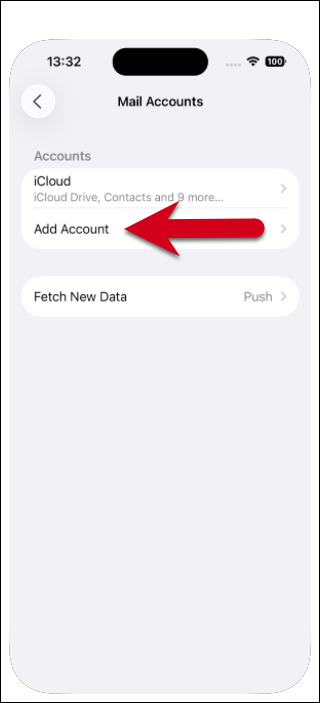
Step 3: Tap Add Account
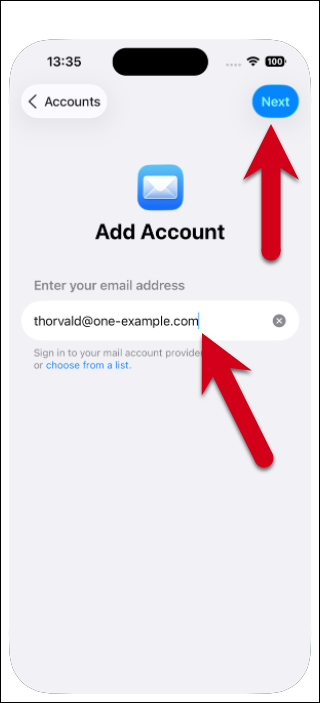
Step 4: Enter Your Email Address
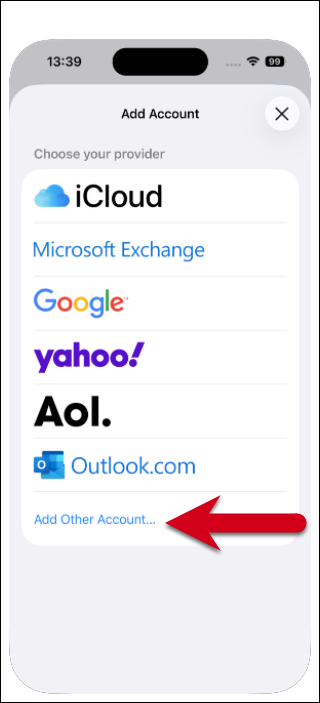
Step 5: Tap Add Other Account.
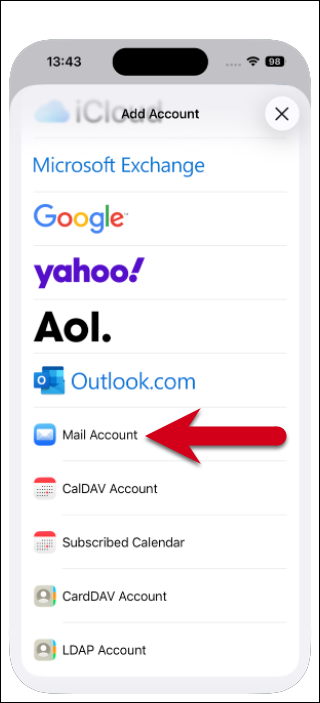
Step 6: Tap Mail Account
Step 7: Add your name, email address and password.
Step 4: Enter Your Email Address
Step 5: Tap Add Other Account.
Step 6: Tap Mail Account
Step 7: Add your name, email address and password.
-
Your name
-
Full email address (ex: myemail@yourdomain.com)
-
Password
-
Account description
-
Select IMAP on the top of screen
-
Update your INCOMING MAIL SERVER settings:
-
Edit the Host Name field to: mail.yourdomain.com
-
Ensure the User Name is your full email address
-
IMPORTANT: Ensure that the Email username is your full email address (ex: myemail@yourdomain.com) and that your Password is correct
-
-
-
Update your OUTGOING MAIL SERVER settings
Note: For accessing your email, outgoing mail server settings are required for sending mail-
In the Host Name field enter: mail.yourdomain.com
-
In the User Name field enter: Your full email address
-
In the Password field enter: Your email password
-
Congratulations, your email is now configured!